Keep Your Image in the Process
Begin with a photo, drawing, product, or place you already have. Use it as visual guidance while you explore a new direction.
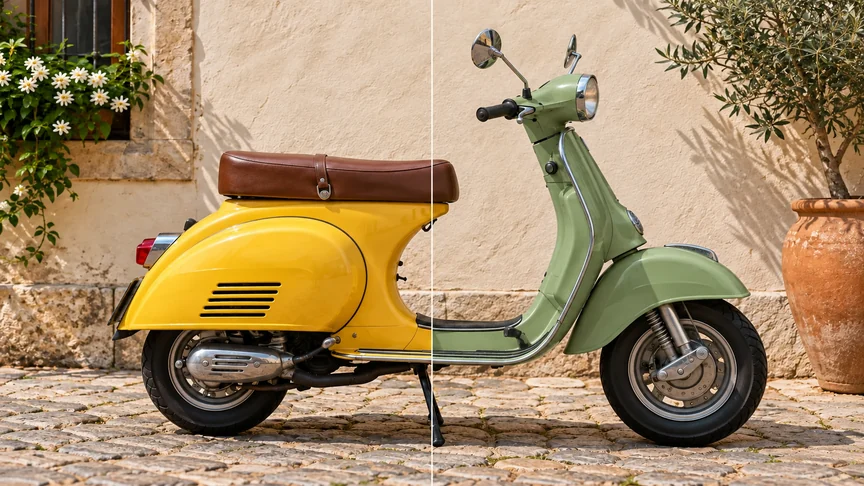
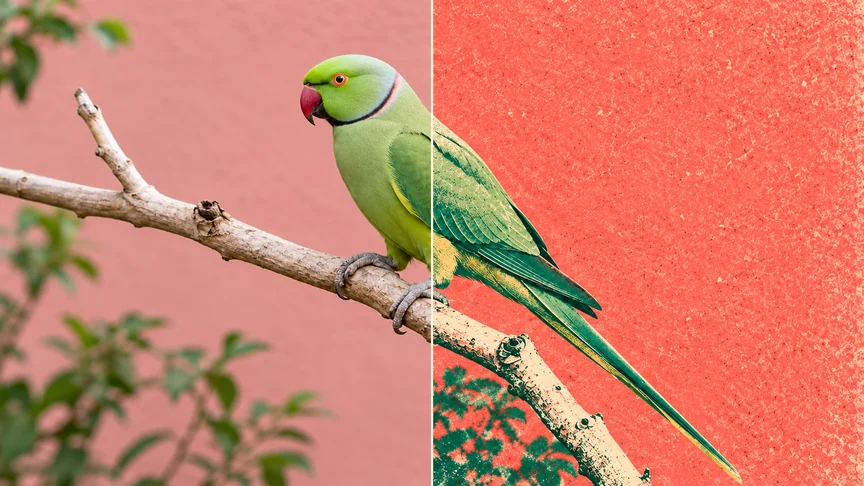
Give a familiar image a different visual language using AI Image to Image. Try a painterly finish, a graphic illustration, or a more cinematic treatment while using the original subject and composition as your guide.
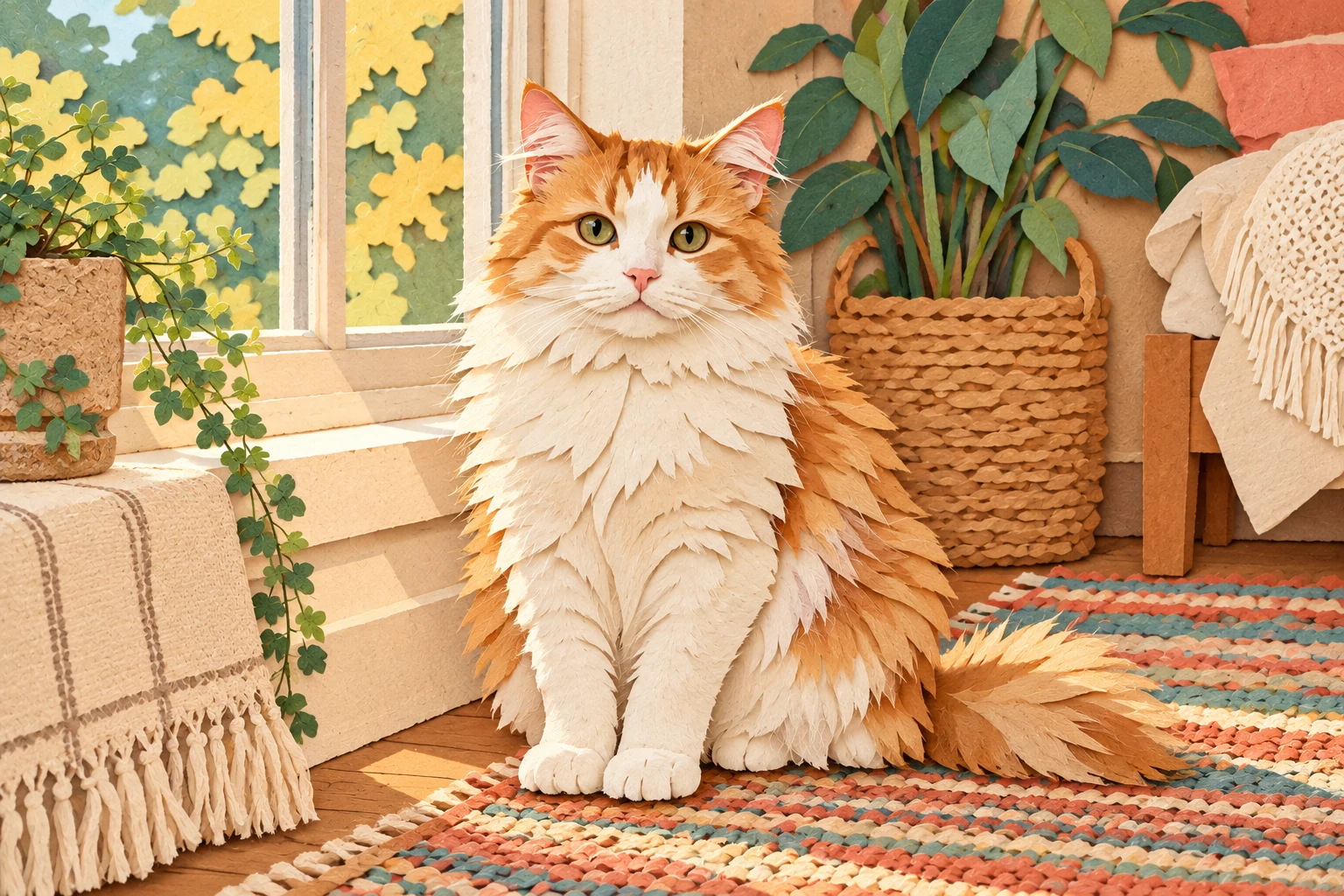
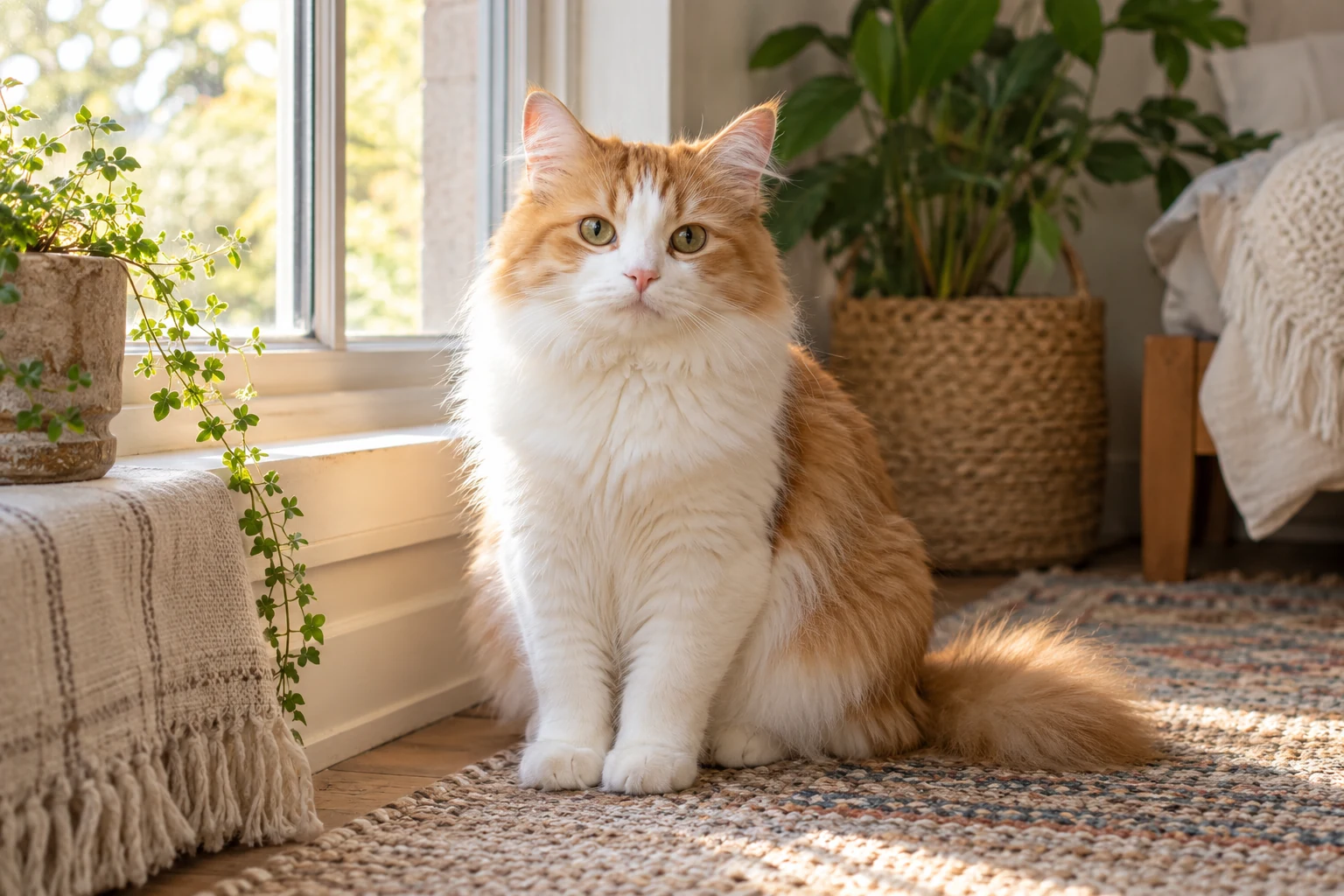
Use one or more images to guide a new composition. Describe how the subject should appear, what kind of setting you want, and which visual details from the references should carry through.
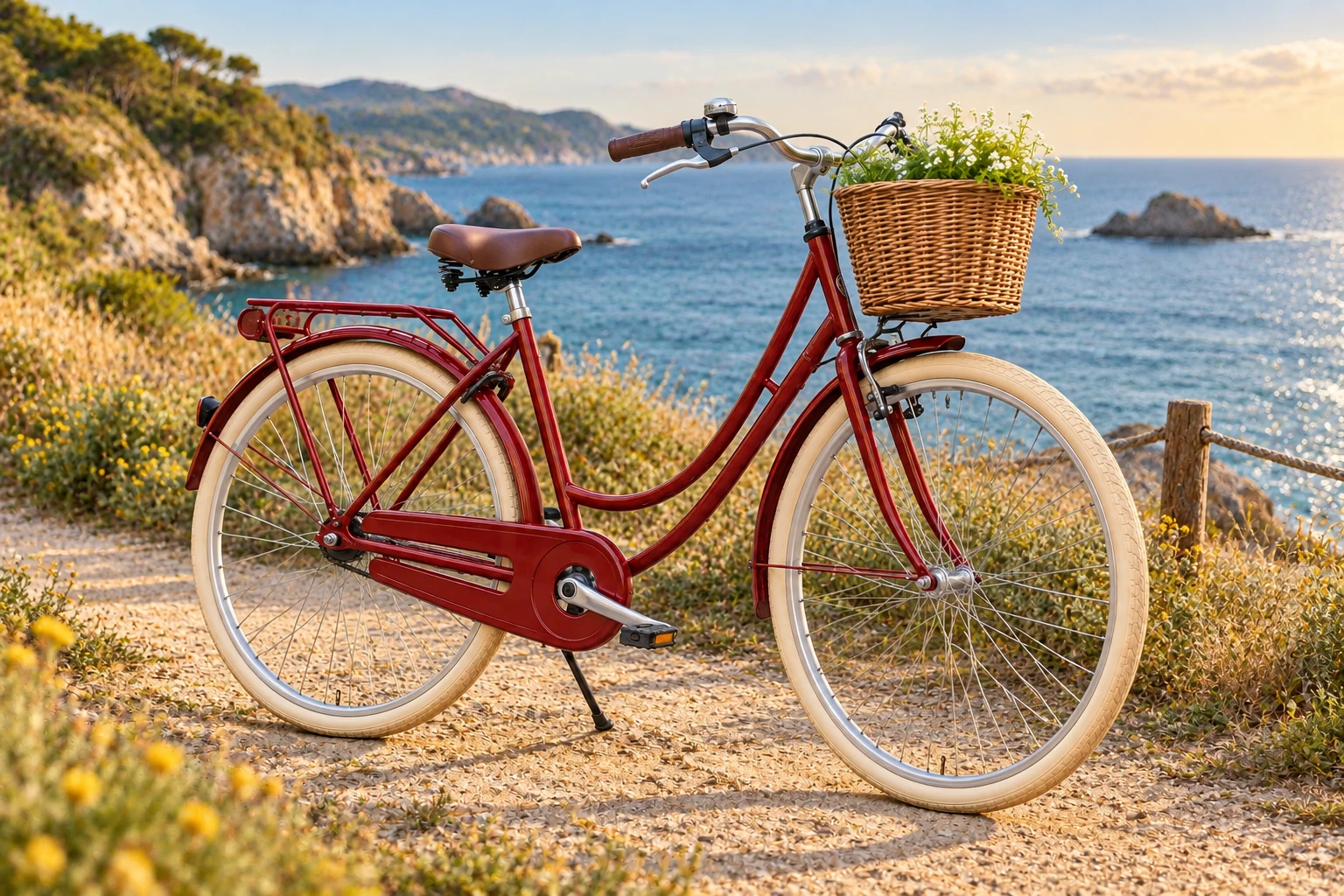
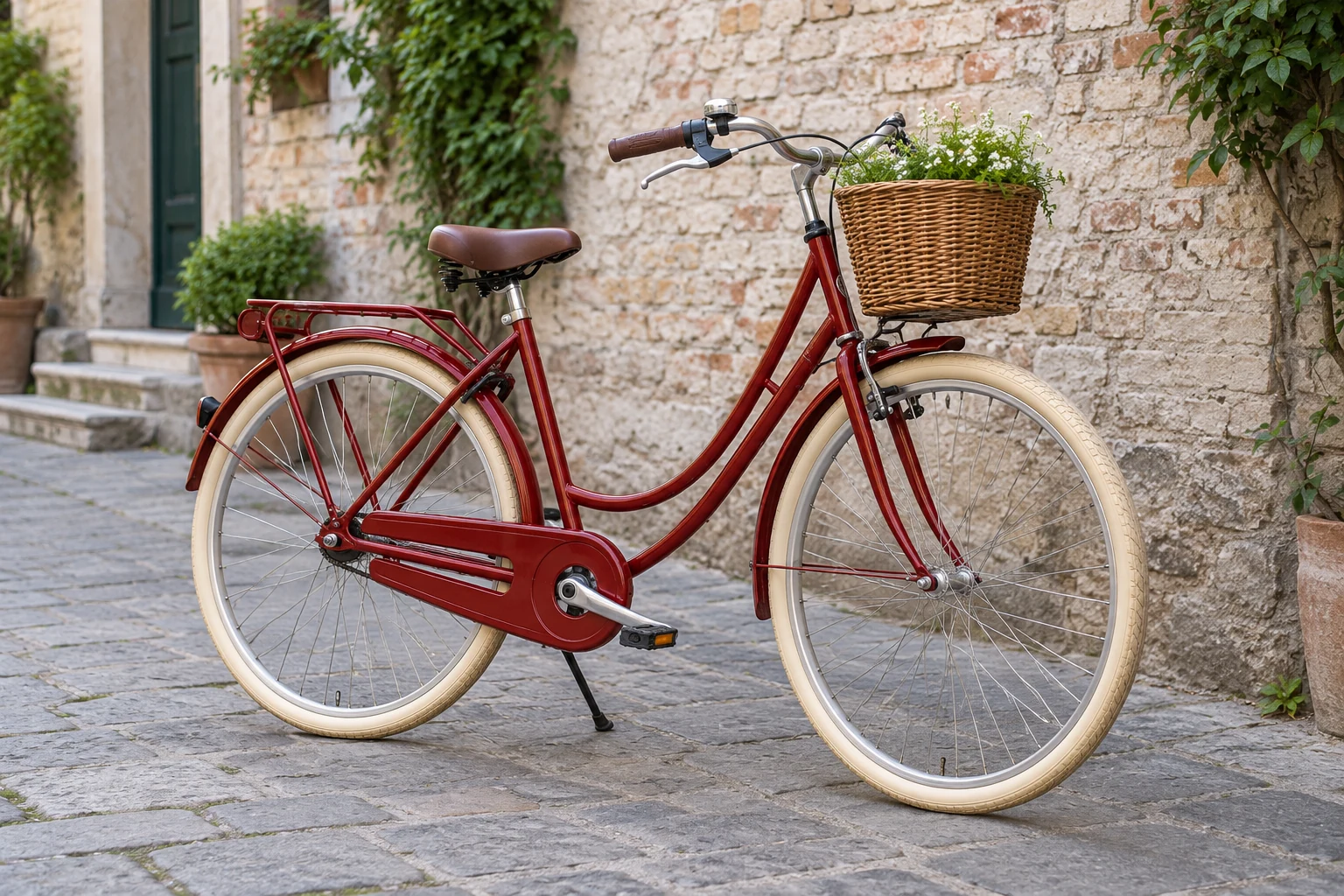
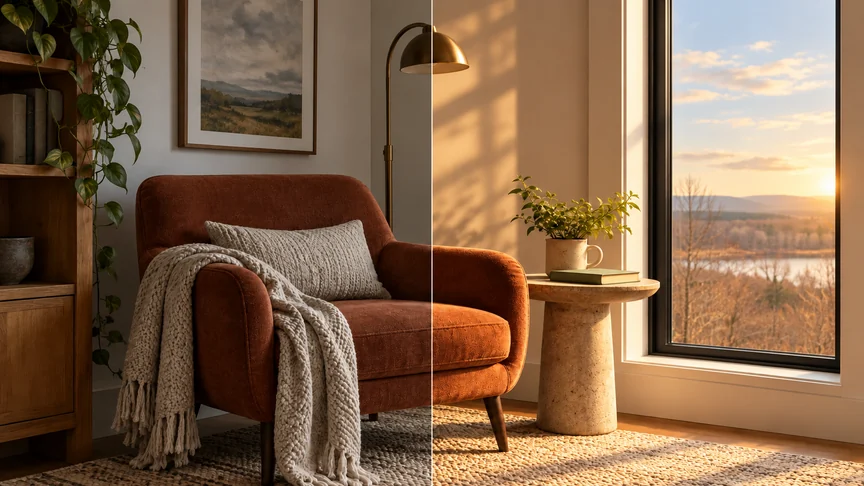
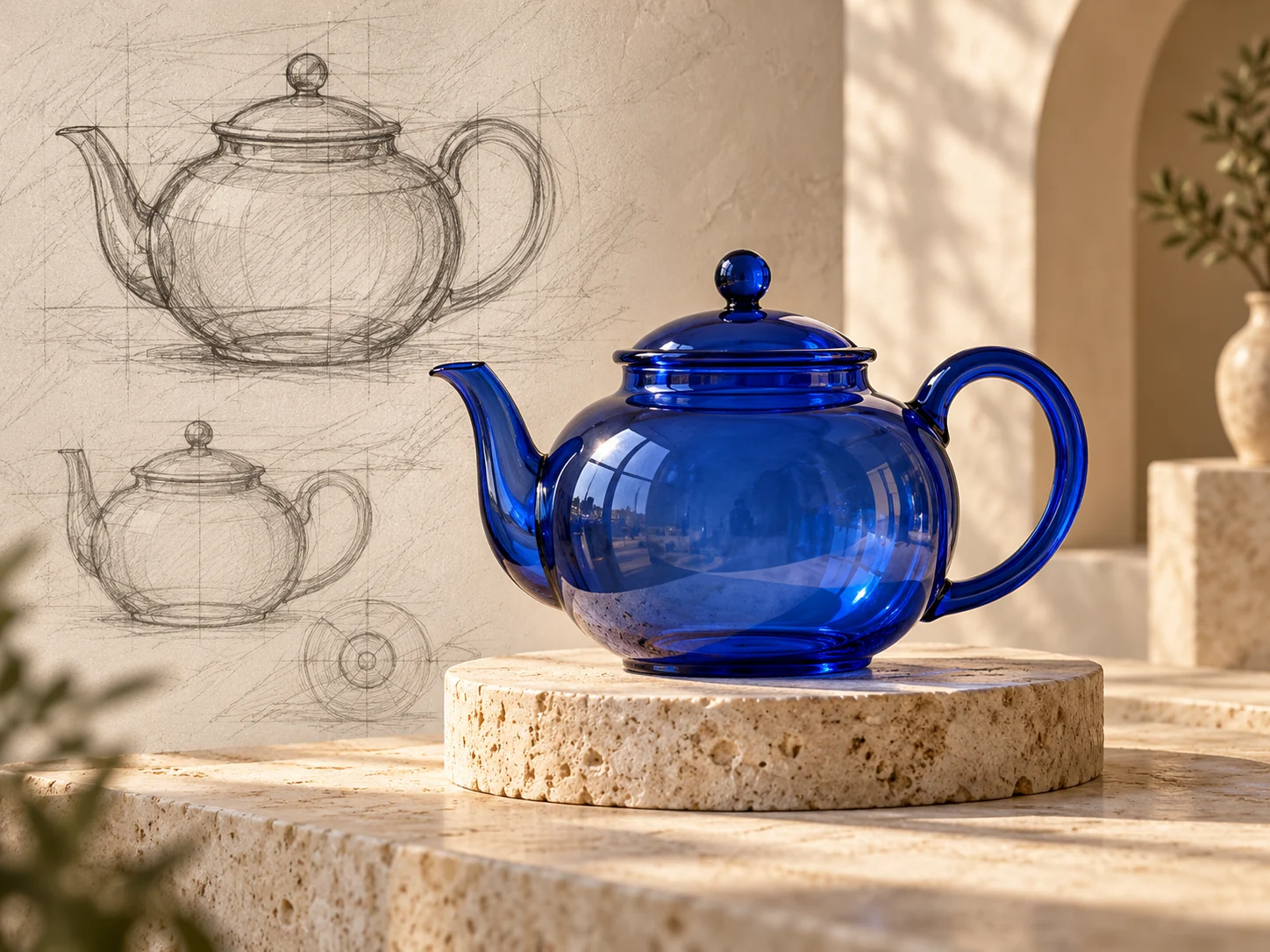
Start with a product photo or a picture of your space, then test new materials, colors, lighting, and layouts. AI Image to Image is a quick way to explore visual ideas before settling on a direction.
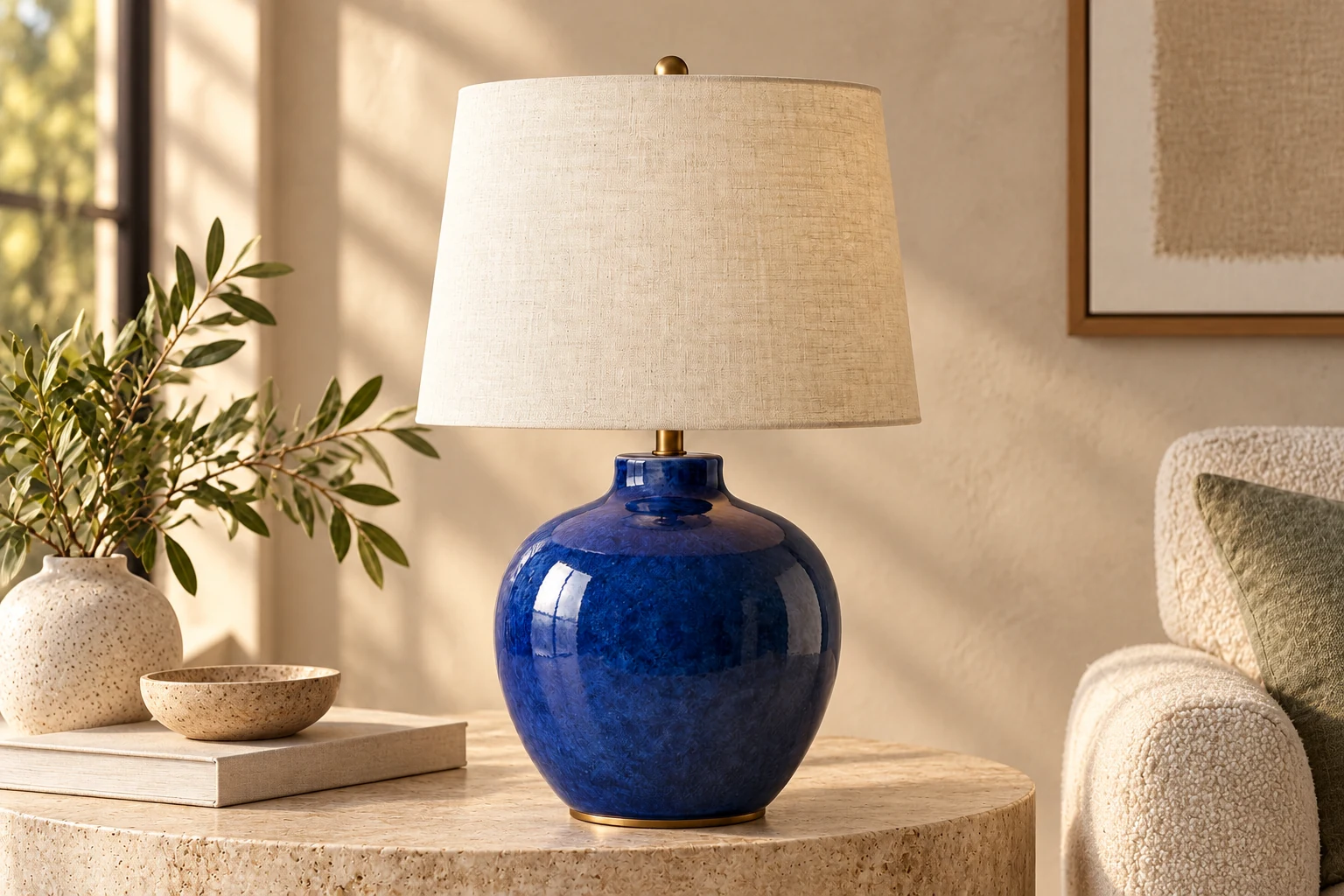
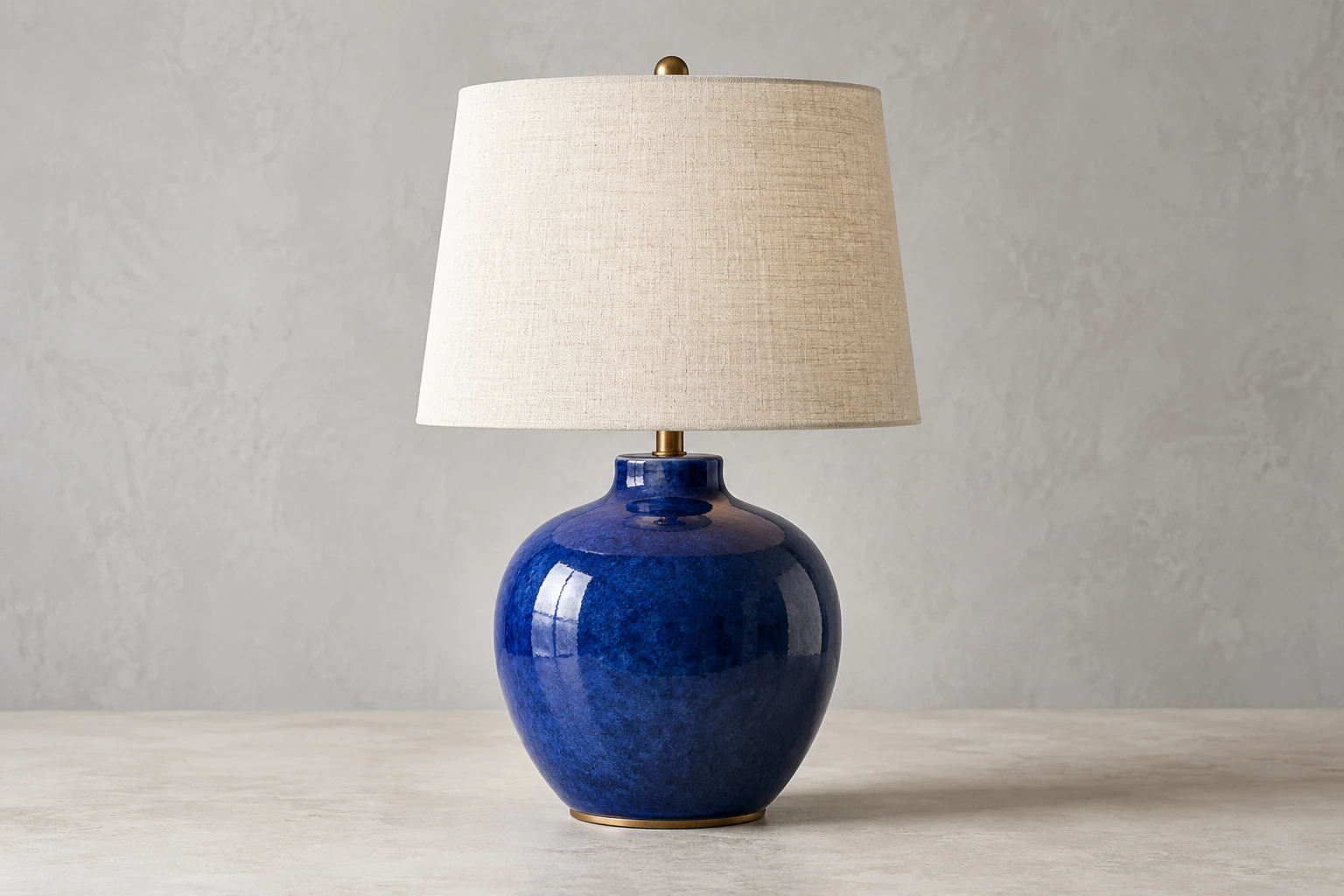
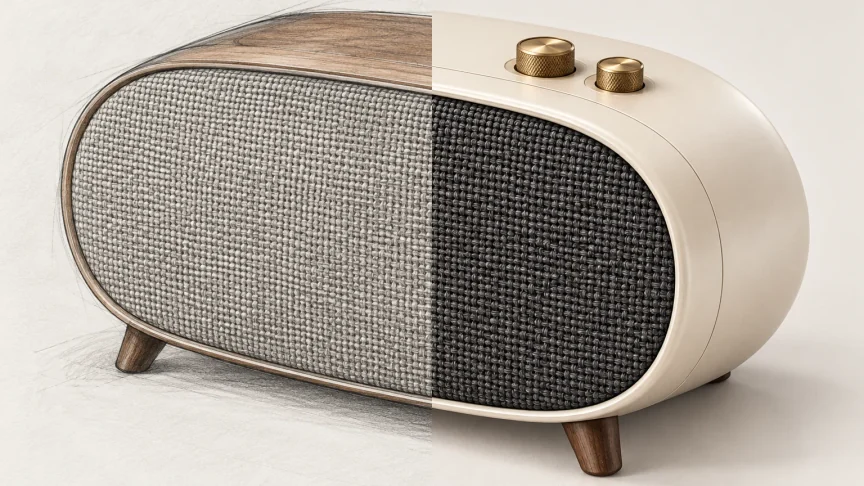
Bring a rough drawing or visual reference into a clearer creative direction. Describe the forms, palette, and finish you want, then review how the generated image follows the starting idea.
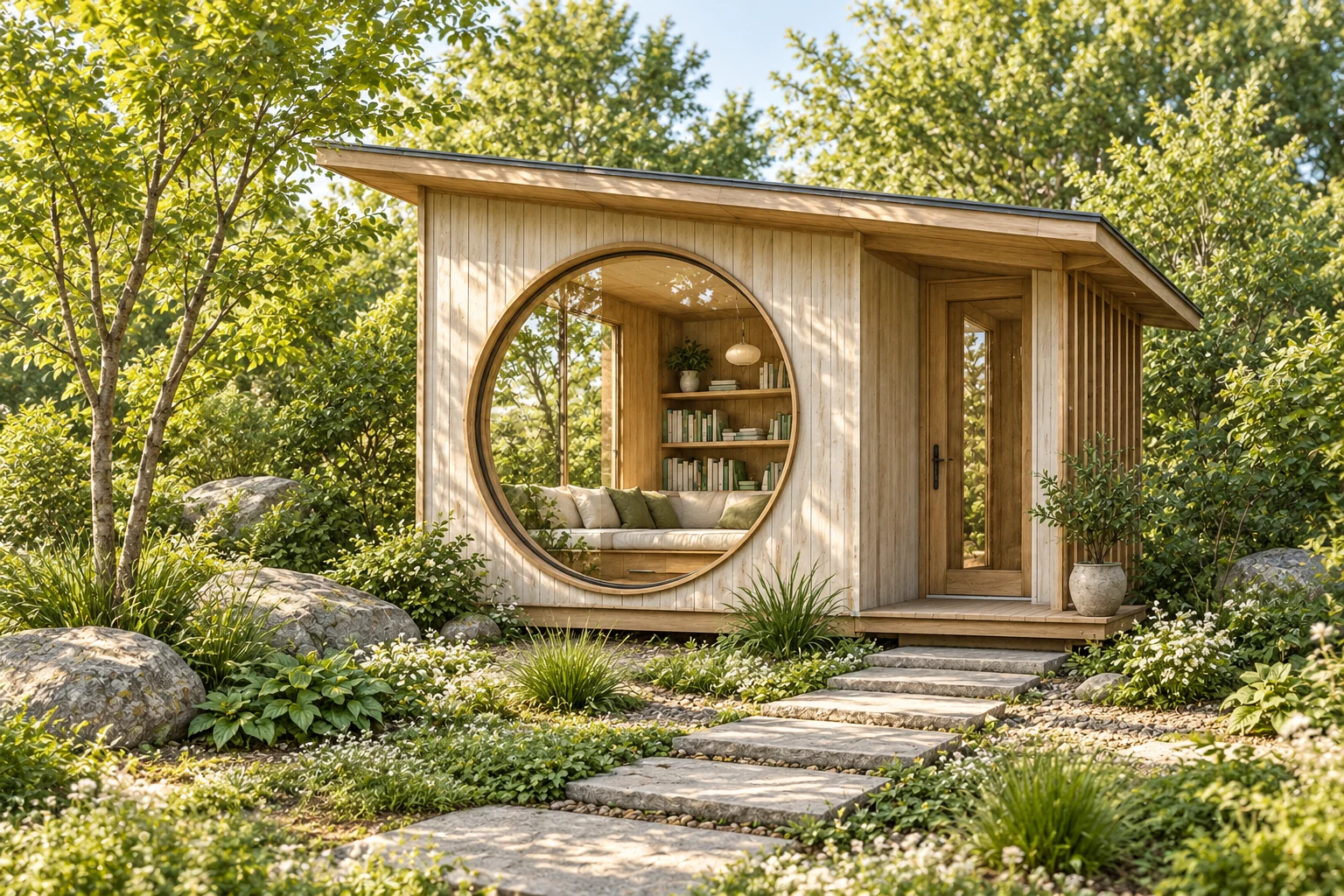
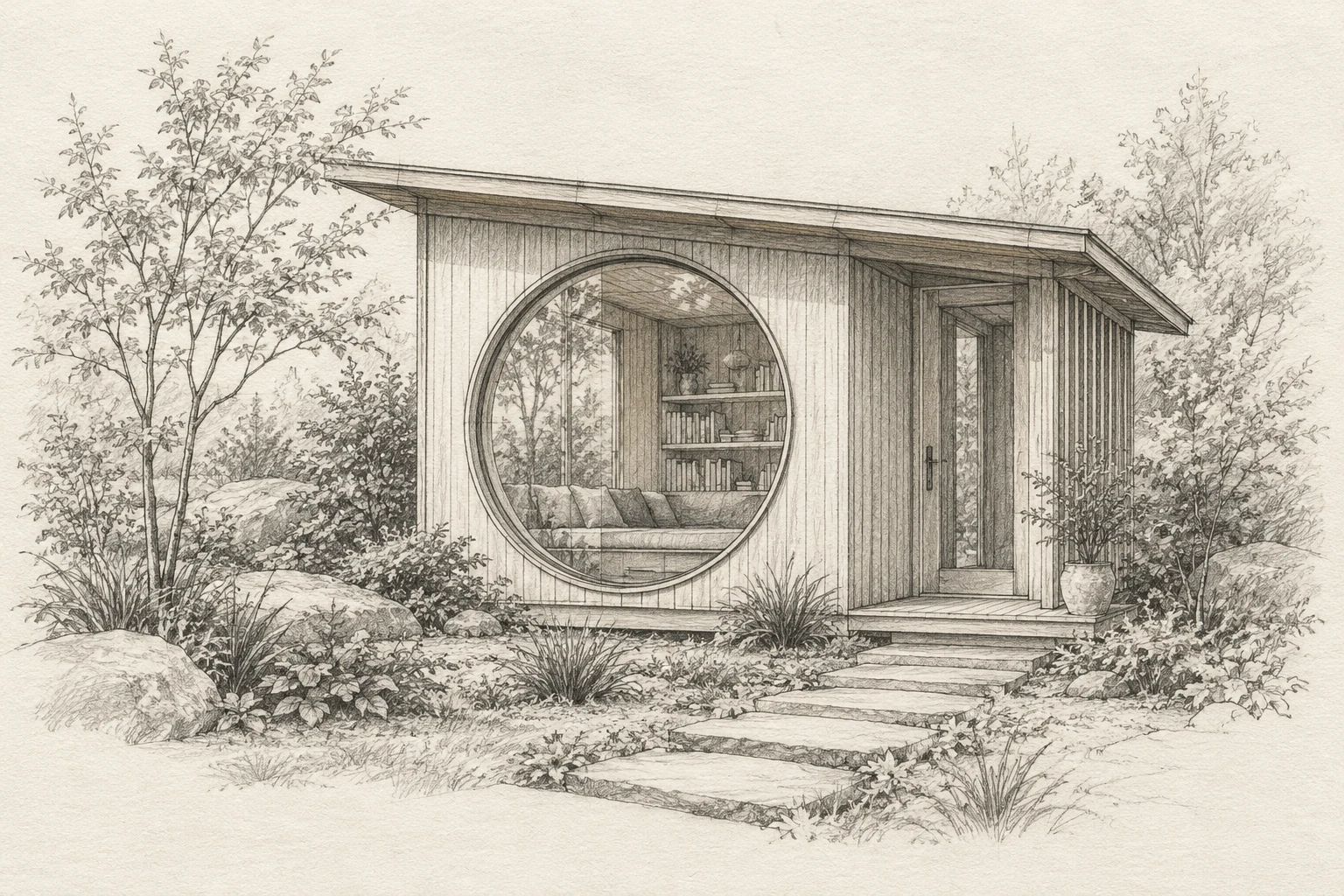
Begin with a photo, drawing, product, or place you already have. Use it as visual guidance while you explore a new direction.
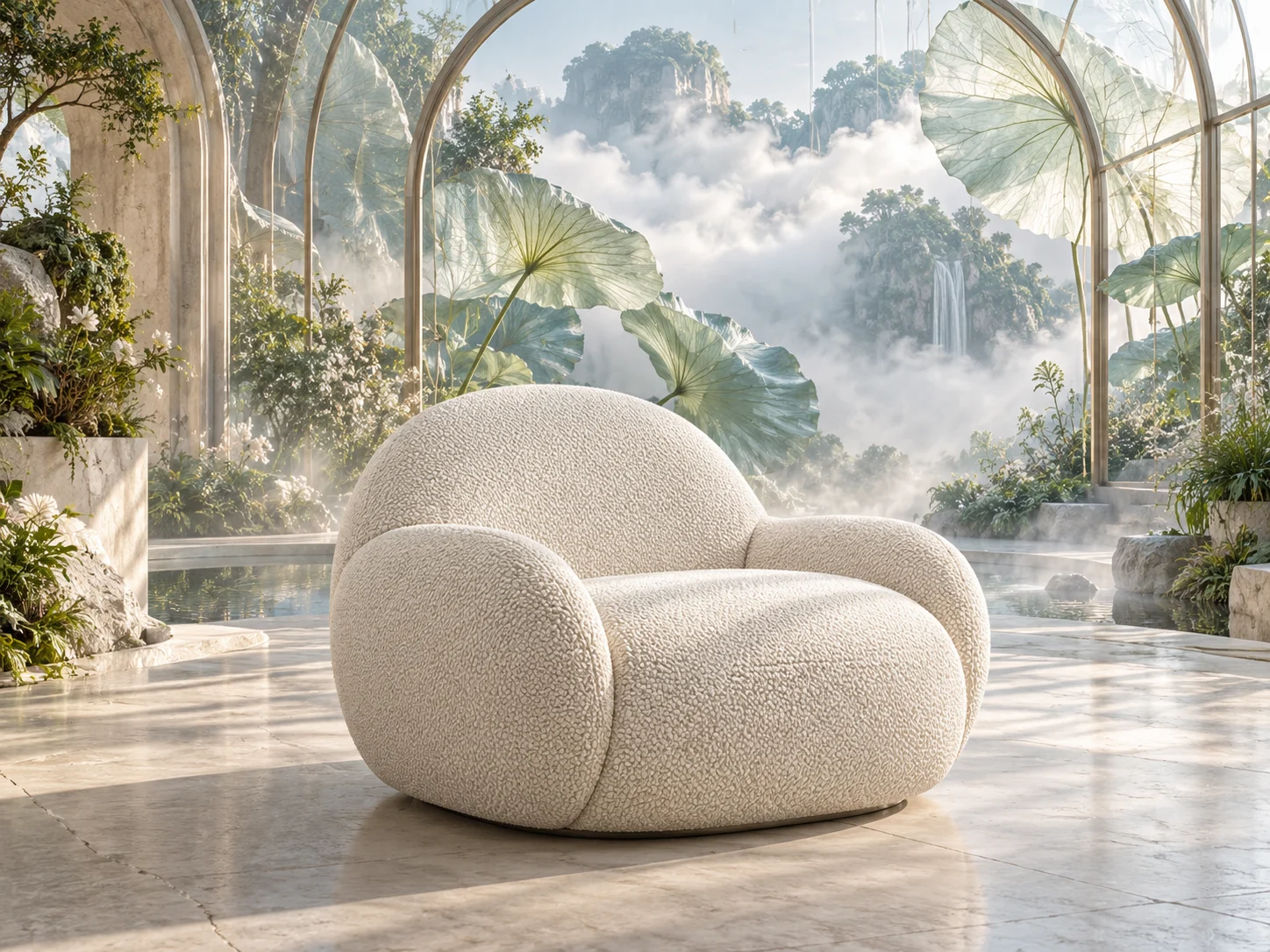
Ask for a different mood, setting, material, or art style, and name the elements you want the result to preserve.
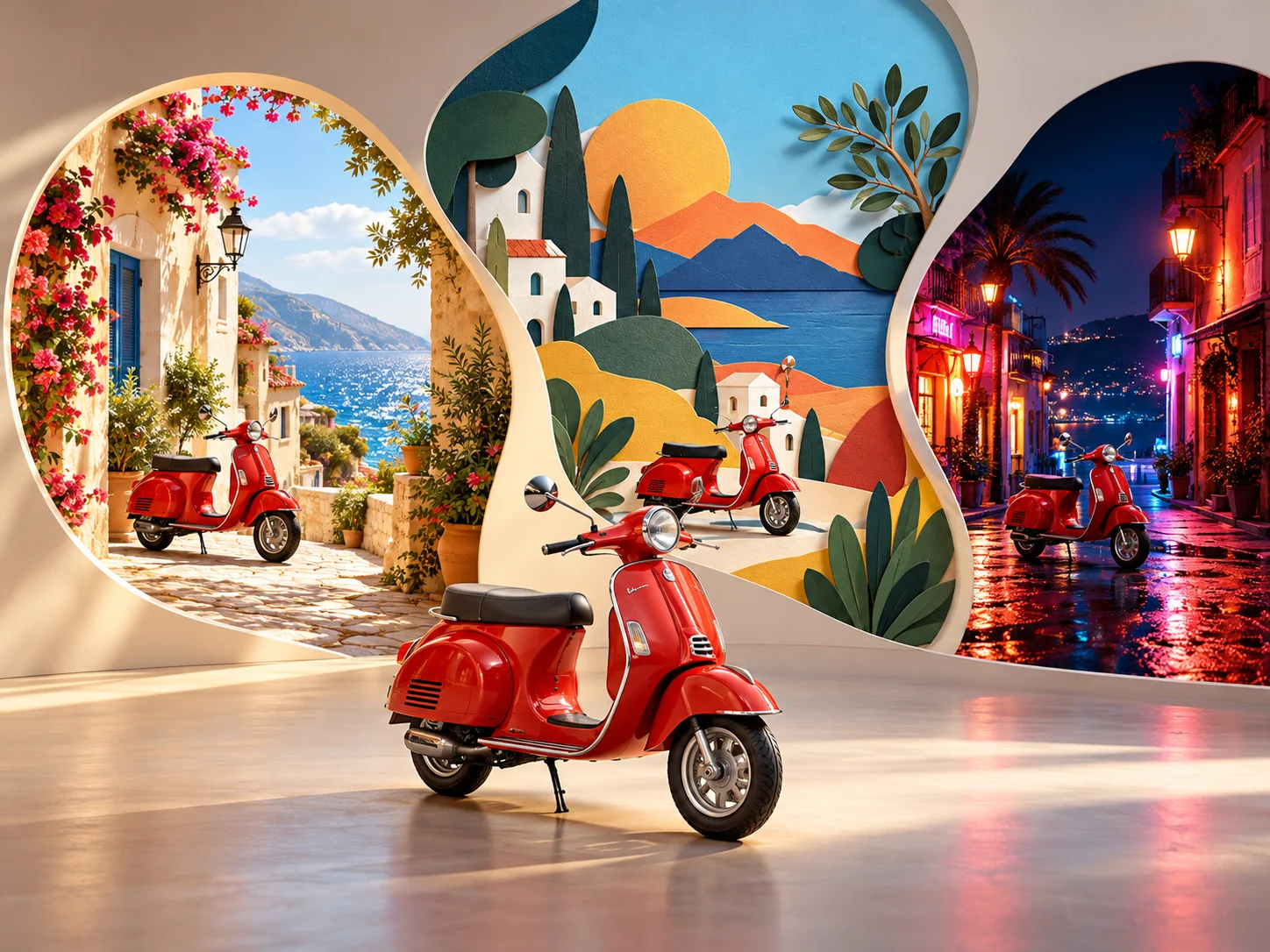
Generate a variation, review the details, and refine your prompt when you want to test a fresh composition or creative style.
Choose a JPG, PNG, or WebP image up to 24 MB. Use a photo, illustration, product shot, room, or sketch as the visual starting point for a new variation.
Explain what the new image should look like and which details should stay recognizable. Choose an available model to explore its style, composition, and output options.
Check how the result follows your reference and prompt. Adjust the description to try another direction, then download the image for a concept board, campaign, store, social post, or personal project.
Practical ways to turn a reference image into a fresh visual direction, illustrated with fictional creator profiles and AI-generated portraits.
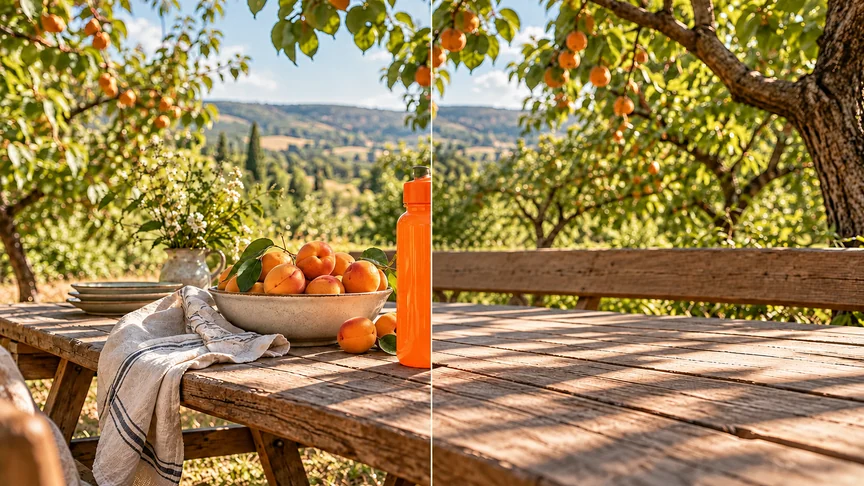
Start with a straightforward product photo and let AI Image to Image help you explore a campaign setting around it. Keep the silhouette, materials, and key details recognizable while testing a new palette, surface, or lighting direction.
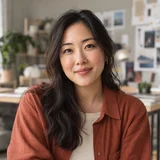
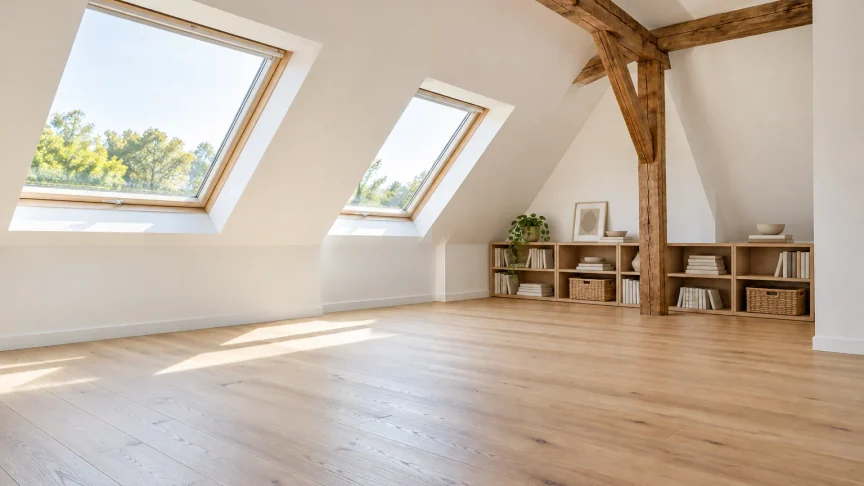
Use a room photo as the foundation for an early design study. A focused prompt can help compare wall colors, furniture styles, and daylight moods without losing the proportions of the original space.

Build alternate art directions from one strong photograph. Preserve the subject and framing, then vary the backdrop, color treatment, or atmosphere to see which version best supports the story.
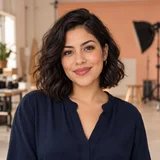
Develop a rough character or environment sketch into a more complete concept. Describe the materials, weather, and mood while asking the model to retain the shapes that define the original idea.

AI Image to Image can translate the same source image into several visual languages for a feature or cover concept. Try a graphic illustration, tactile collage, or restrained photographic treatment before choosing a direction.
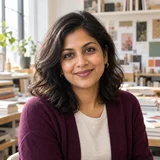
Turn a workshop sketch or prototype photo into a polished material study. Keep the joinery and proportions clear while exploring wood species, upholstery, finishes, and a setting for the finished piece.

Learn how to use references, prompts, and models to shape a new image variation.
Upload a source image, describe the new scene, style, or details you want, and choose an available model. Civon uses the image and your prompt as guidance for a new result. You can review the output, refine your prompt, and generate another variation.
Transform a photo or illustration into a new visual direction. Try a different art style, build a new setting around a subject, explore product or interior concepts, or use a reference to guide a fresh composition. Available controls and results depend on the selected model and source image.
Yes. Civon accepts up to five JPG, PNG, or WebP images, up to 24 MB each. Start with one image or add references to guide a combined result; the number of images supported depends on the selected model and workflow.
Name the parts of the source image that should stay recognizable, then describe the changes you want. For example, keep a product shape or a person's pose while changing the background, lighting, colors, or visual style. Results vary by model and prompt.
Civon offers available Civon, Nano Banana, Seedream, and GPT Image models. Settings, aspect ratios, output sizes, and credit costs depend on the model and appear in the editor before generation. Some models support output up to 4K.
Trial access may be available depending on eligibility and current limits. Each generation uses the credits shown for the selected model and settings. Check the available balance and quoted cost in the editor before you generate.
Your images are not automatically published to a gallery. Civon sends the reference images, prompt, and settings needed for generation to its configured AI processing service and uses private storage with temporary access links. Guest results are retained for up to 24 hours; signed-in retention depends on your plan.