
Food & Menu Photography
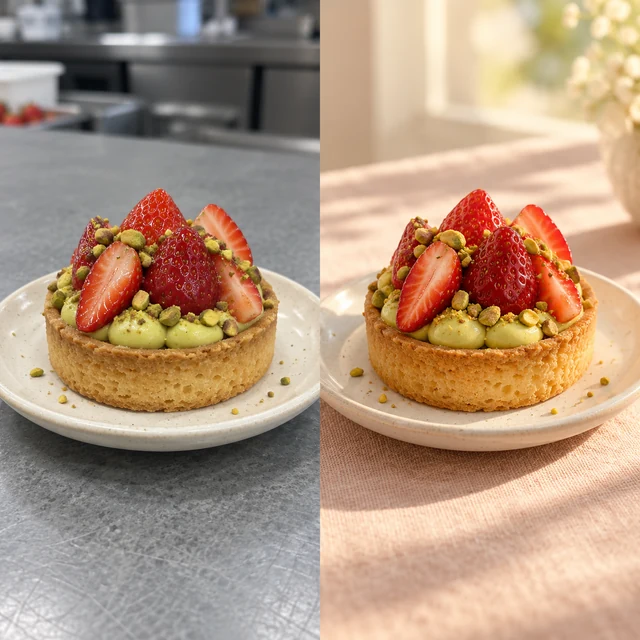
Turn a quick dish photo into a menu highlight. Refine the lighting, simplify the backdrop, and try a new table setting for cafe menus, delivery listings, or your next recipe post.
Discover AI image editing examples and find inspiration for your next creation.
Upload your images to the AI Image Editor and describe what you want to change. Replace backgrounds, remove unwanted objects, explore new styles, or combine visual references. Choose from Civon, Nano Banana, Seedream, and GPT Image models to find the right fit for each edit.
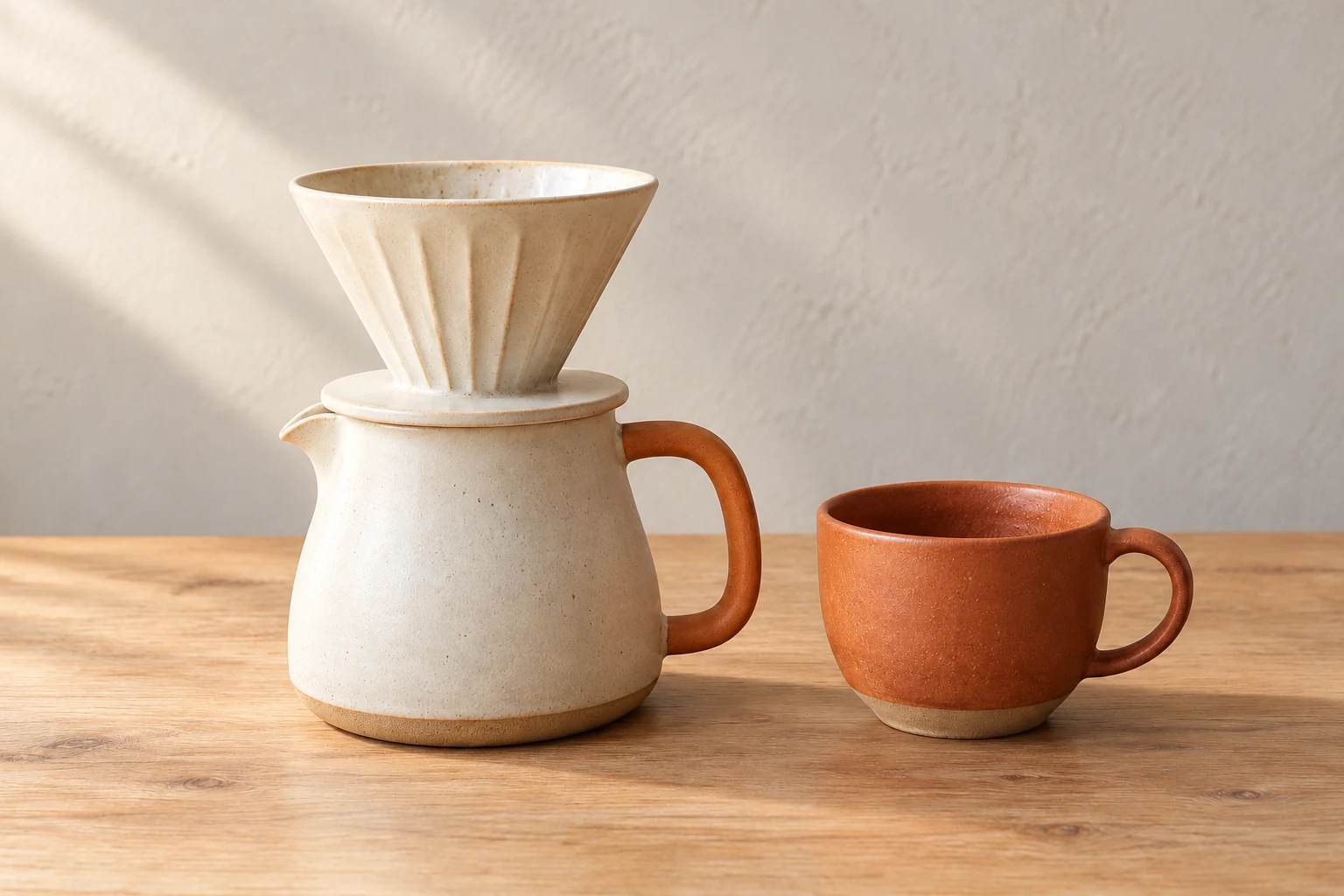
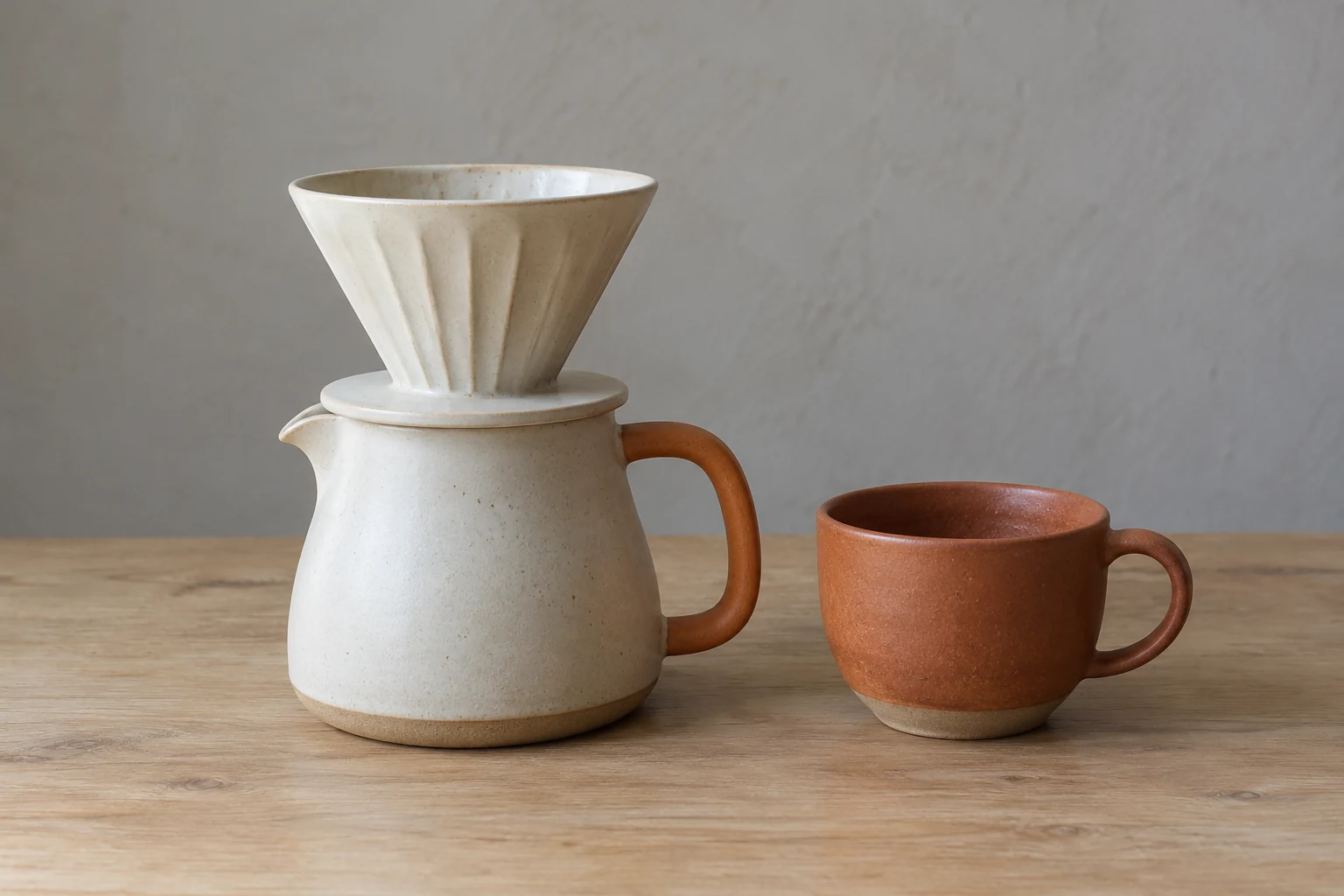
A handmade object deserves light that reveals its shape and texture. Refine exposure, soften distracting shadows, and give product photos a more considered finish. Direct the lighting in your prompt and review surface details before using the result.
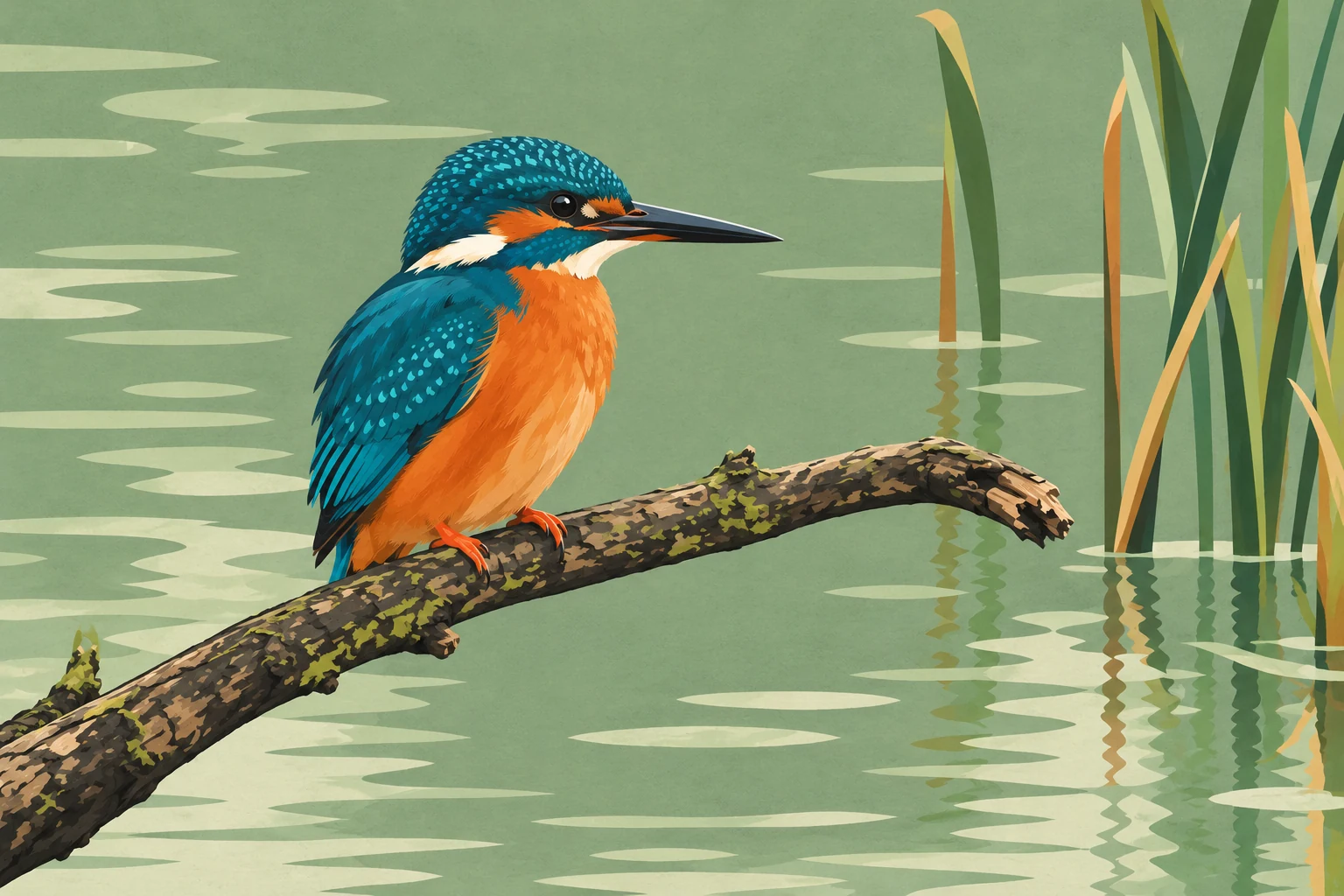
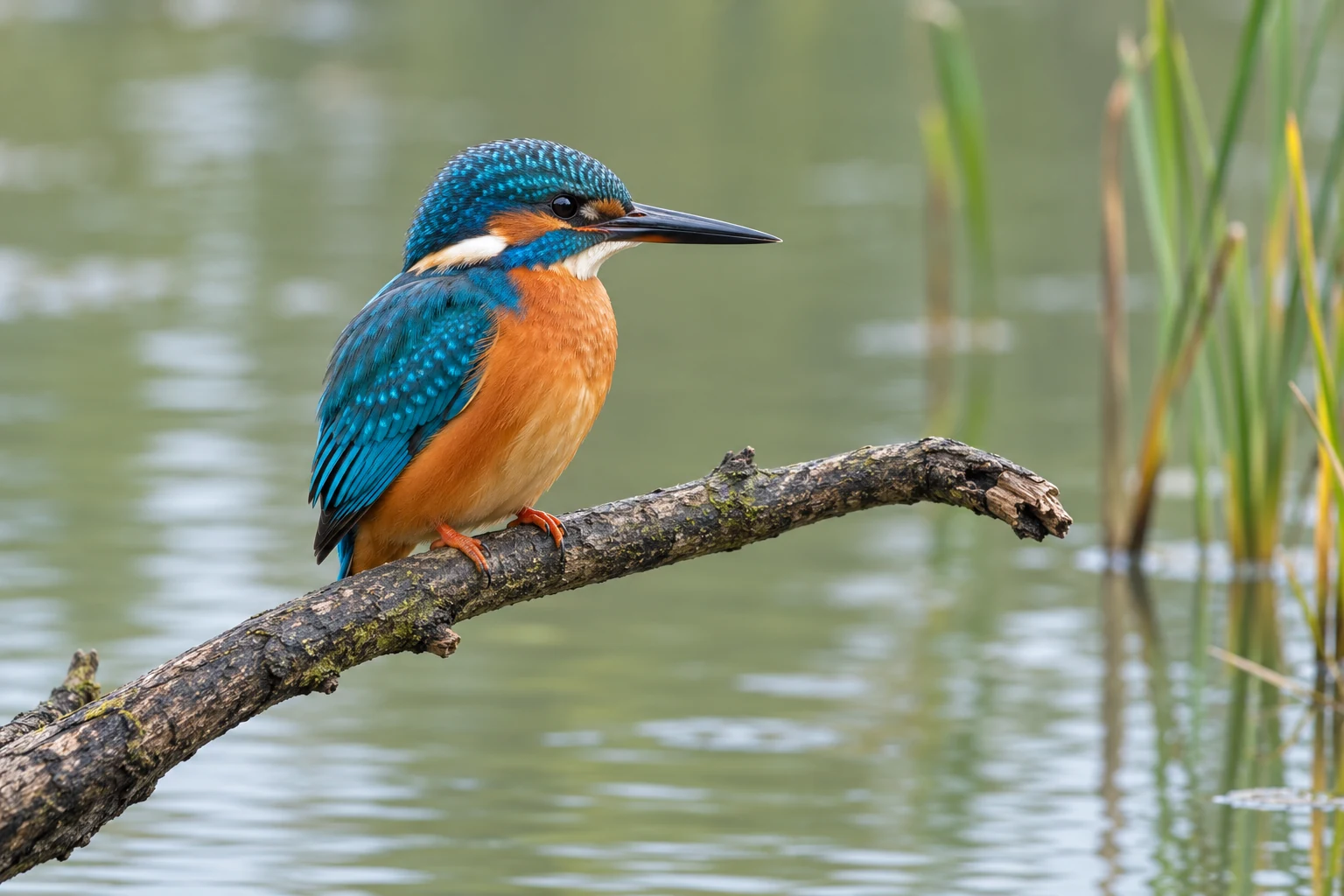
Give a favorite photo a different visual language. Turn feathers, foliage, or everyday objects into bold shapes and a focused color palette for editorial concepts, moodboards, or social graphics. Describe the style and the details you want to retain; the result is an image you can review and refine.
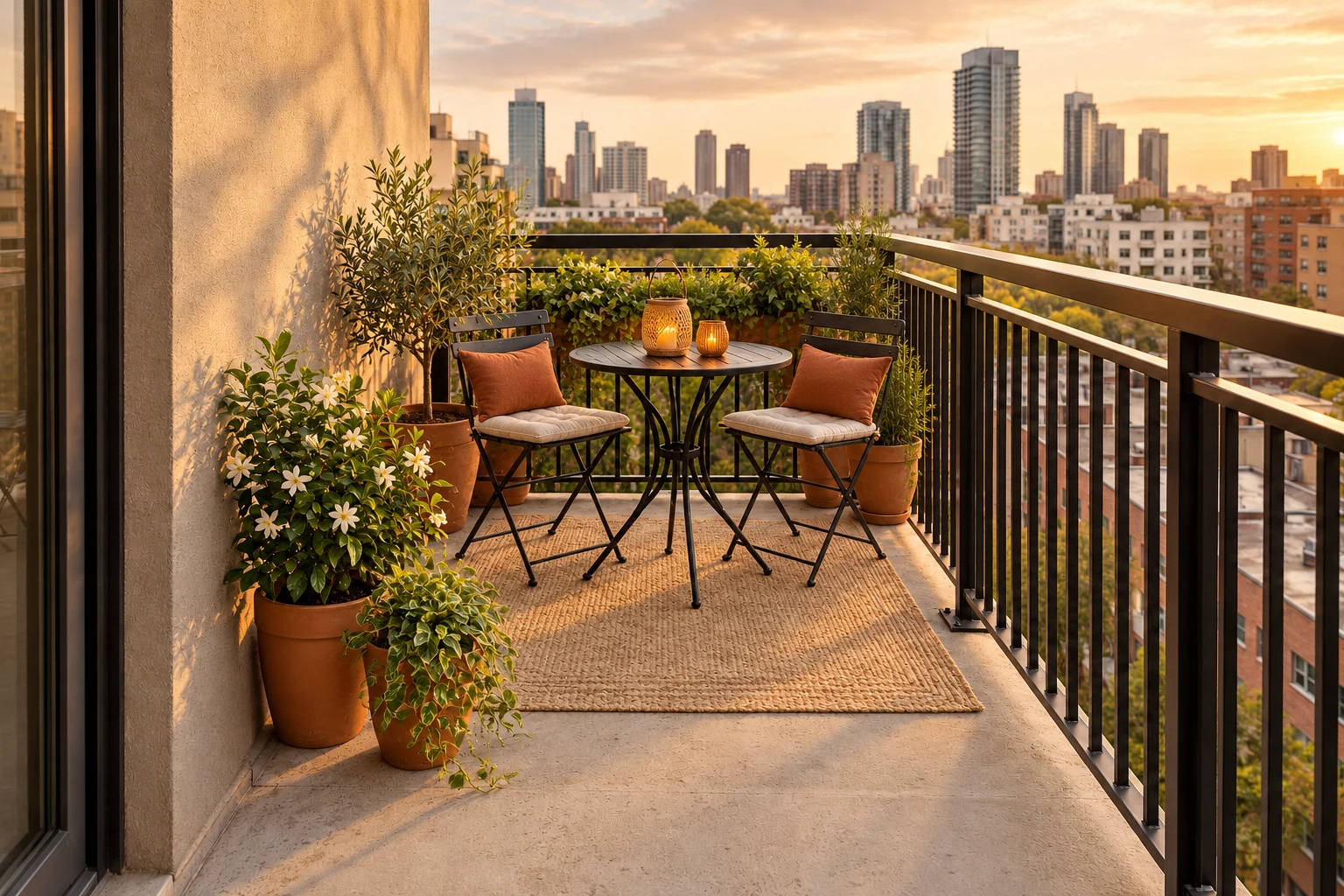
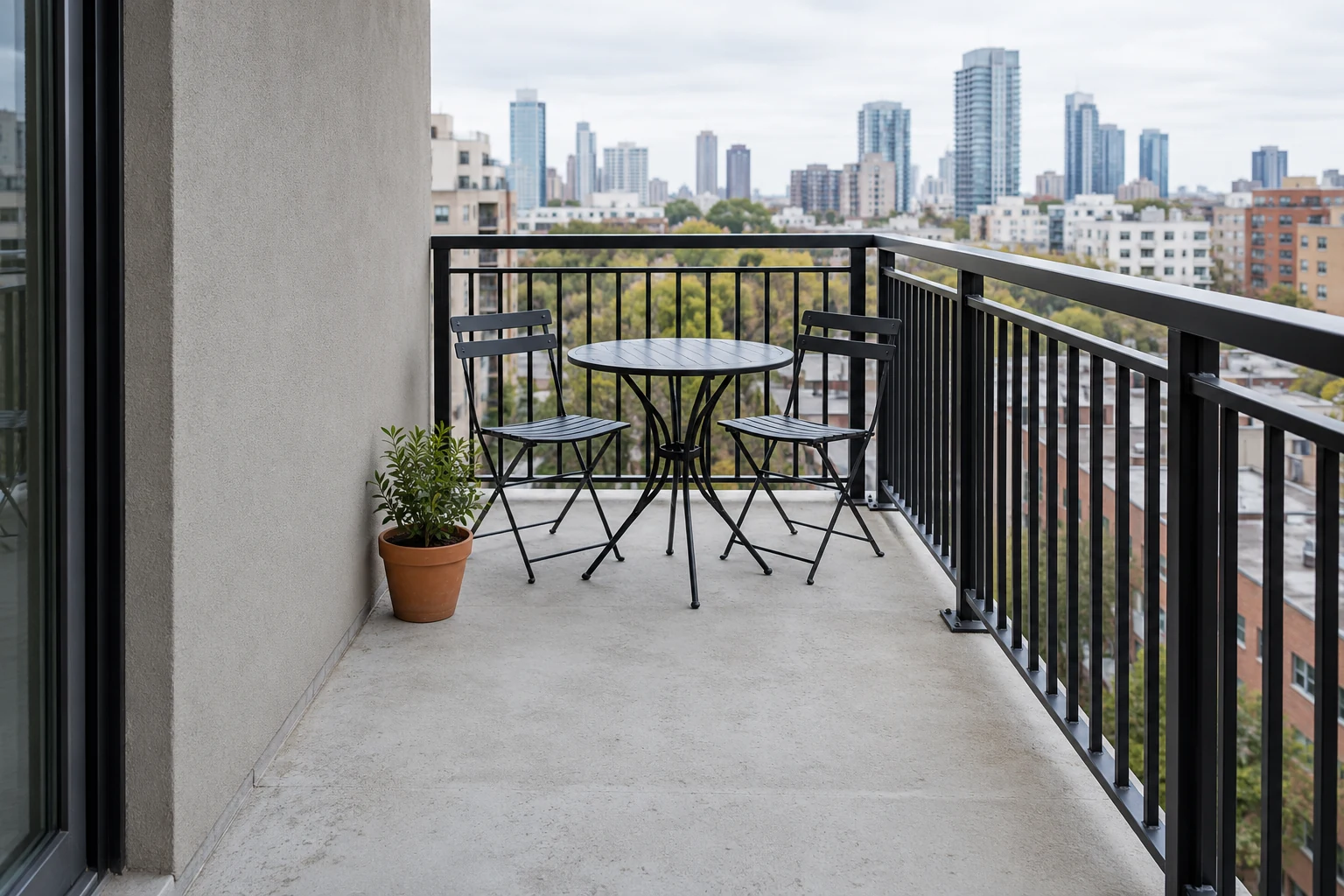
Try a warmer, greener, or more relaxed direction before choosing the furniture and finishing touches. Start from a photo of your own space and describe new materials, colors, plants, and lighting. Explore a balcony refresh or another interior concept while using the original layout as a visual reference.
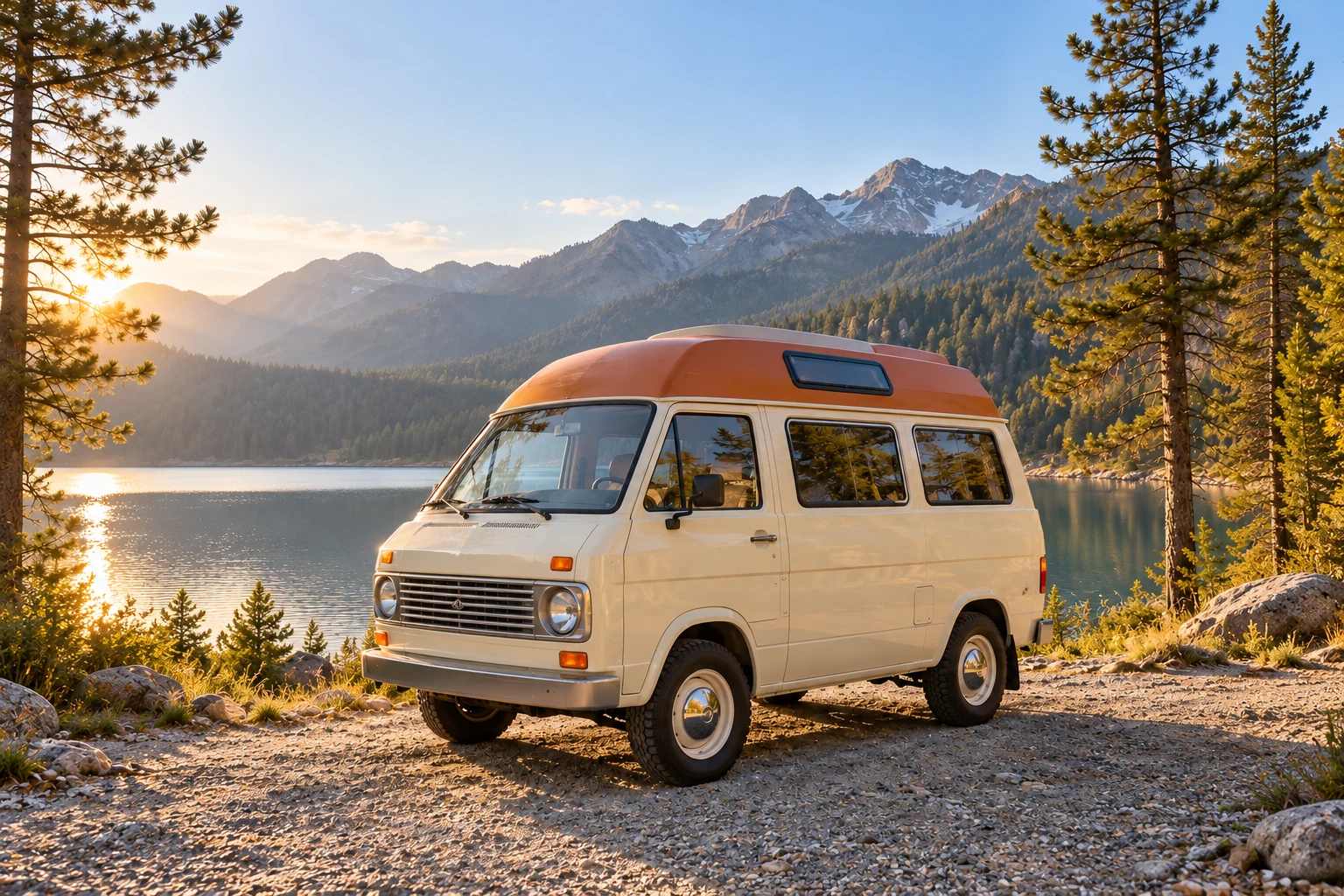
A close crop can leave a bigger story outside the frame. Ask the AI Image Editor to extend the surroundings around your subject, then choose an available aspect ratio that suits your layout. Add room for a wider view, a heading, or a new composition, and check the joins before sharing.
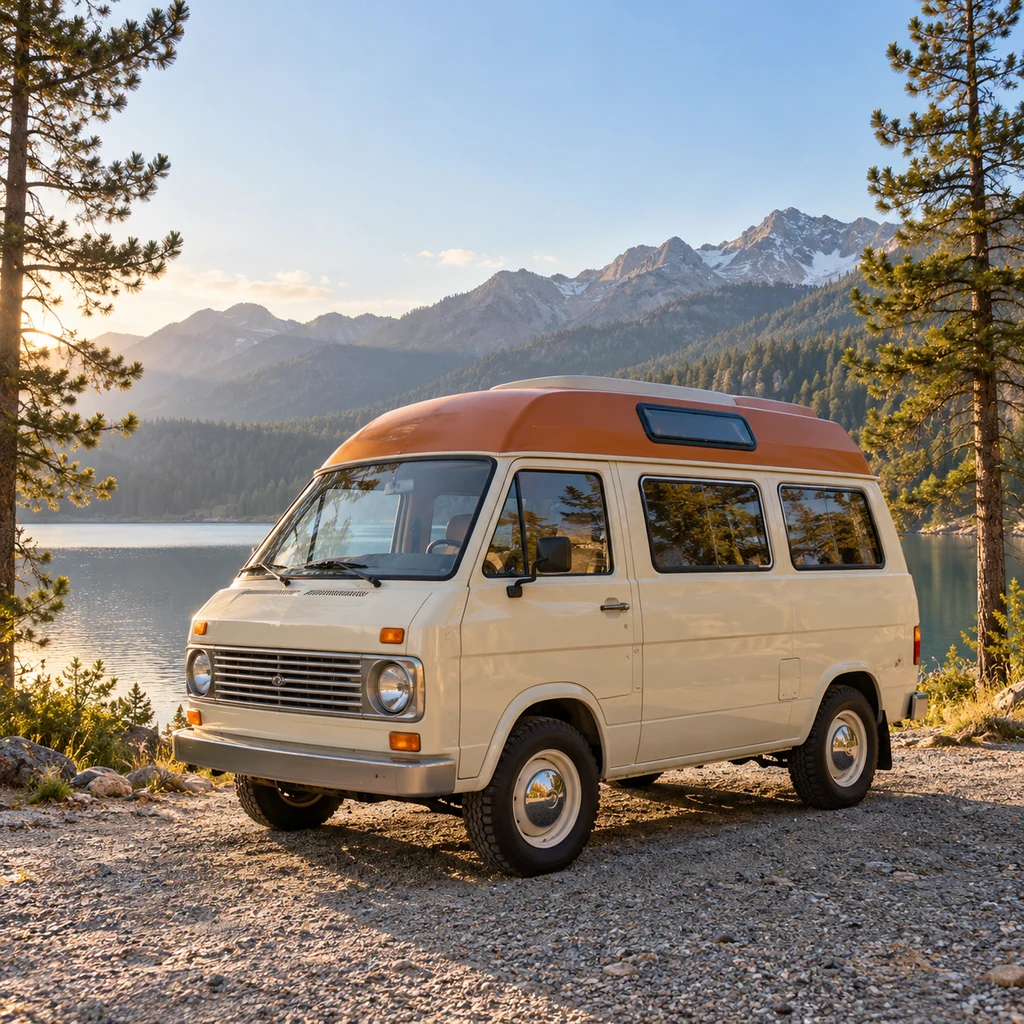
From menu photos and room ideas to portraits and travel memories, use the AI Image Editor to explore a new look for the images you already have.
Turn a quick dish photo into a menu highlight. Refine the lighting, simplify the backdrop, and try a new table setting for cafe menus, delivery listings, or your next recipe post.
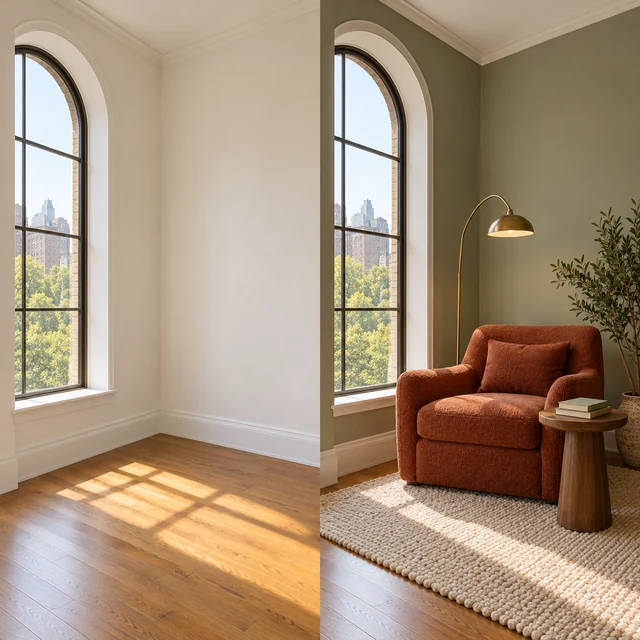
See a new direction before moving the furniture. Try a different wall color, swap decor, or turn an empty corner into a reading nook to explore what could work in your space.
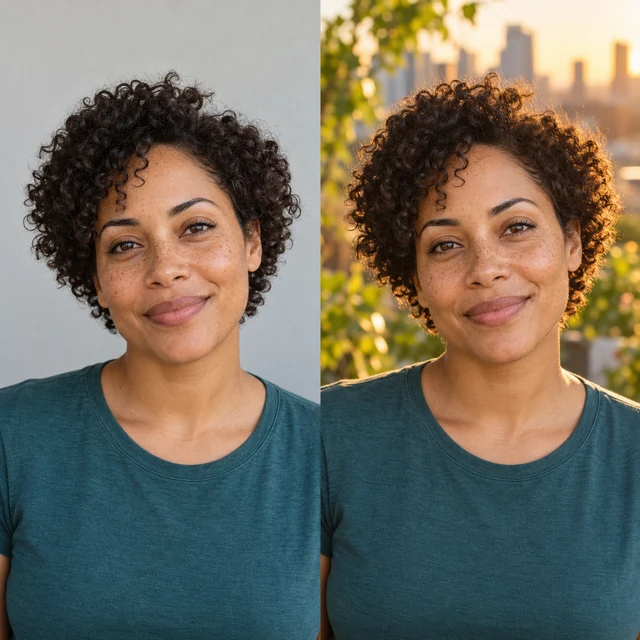
Give a favorite portrait a fresh setting. Explore softer light, a different background, or a warmer color palette for your profile, portfolio, or a creative project with a more personal feel.
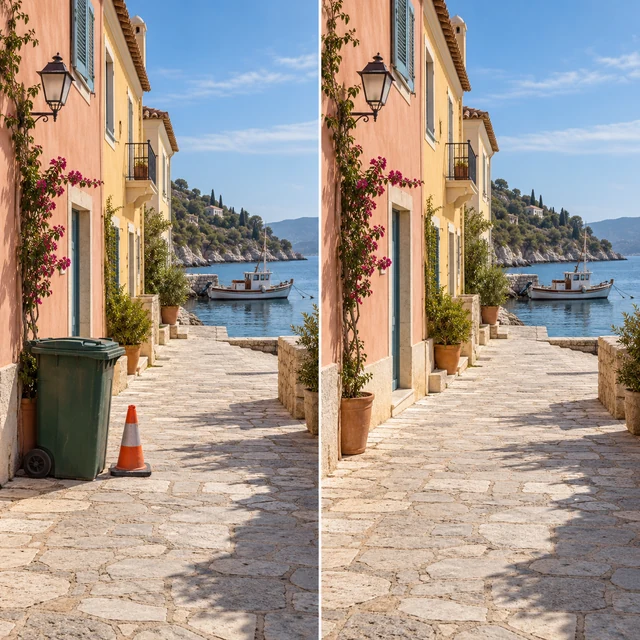
Keep the view you came for. Let the AI Image Editor remove a distracting bin, cone, or stray object so the place takes center stage, then save a cleaner version for your album, travel journal, or next print.
Upload the photo you want to work on, or add references for a combined image. The AI Image Editor accepts up to five JPG, PNG, or WebP files, with a 24 MB limit per image.
Describe the result you have in mind and name the details you want to keep. Try “replace the gray backdrop with a warm studio setting” or “remove the bin beside the doorway.”
Pick an AI model, then choose from its available aspect ratios and resolutions. Check the credit cost, generate your edit, and download the result when you're happy with it.
Perspectives on editing product photos, portraits, creative concepts, and everyday images.
I want to explore a warmer backdrop for a product without planning another shoot. Having the reference image and prompt together makes it easier to describe the direction I have in mind.

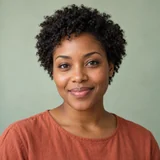
A different setting can give a portrait a new mood. I can tell the AI Image Editor what background and lighting I want, while asking it to keep the expression and outfit that make the original feel personal.
A photo of the actual room is a useful starting point for a design conversation. I can explore wall colors, furniture, and materials, then compare the idea with the space before making a plan.

The dish should stay the focus of a recipe photo. I like being able to ask the AI Photo Editor for softer light and a simpler table setting, then review the food details before choosing an image for a post.

Sometimes a bin or a stray cone interrupts an otherwise lovely view. A focused cleanup prompt lets me describe that one change and check the result against the photograph I started with.

Early concepts are about exploring possibilities. The AI Image Editor's model choices and image references give me different starting points for trying a new palette, visual style, or composition before I settle on a direction.

Find the details on reference images, model settings, credits, downloads, and file storage.
Start with a photo or illustration and describe the change you want. Try a new background, remove an unwanted object, adjust the lighting, explore a different style, or extend the scene. Name the details you want to keep in your prompt, then review the generated result before using it.
Trial access, when available, is subject to eligibility and usage limits. Each edit uses the quoted credits for the selected model and settings. Check your available balance and the cost shown before generating. You can browse the public edit examples without spending credits.
You can add up to five JPG, PNG, or WebP files, with a 24 MB limit per image. Start with a single image or add several references to guide a combined composition. The number of references a generation can use depends on the selected model and workflow.
Each model has its own available settings and credit cost. The AI Image Editor offers Civon, Nano Banana, Seedream, and GPT Image models, subject to availability. Aspect ratios and resolutions depend on your selection, with output up to 4K where supported. Review the updated options and cost whenever you switch models or change a setting.
The AI Image Editor does not add a watermark to downloaded edits or claim ownership of your output. Before using an edit in a shop, campaign, or client project, make sure you have the necessary rights to the source images and intended use. Applicable law, third-party rights, Civon's Terms of Service, and the selected model provider's terms still apply.
Your uploads and results are not automatically published to a gallery. Civon uses private storage and temporary access links; the images, prompt, and settings needed for an edit are processed by the configured AI services. Guest tasks and unsaved account results expire 24 hours after task creation. Saved creations follow your plan's retention period. Download anything you want to keep before it expires.
Give your image a new direction.
Upload a photo, describe what you want to change, and use the AI Photo Editor to refine details, rework the setting, or explore a completely new look.
Start editing for free